 Minimaps
A live minimap for your Owlbear Rodeo sessions: see the whole scene and every PC at a glance.
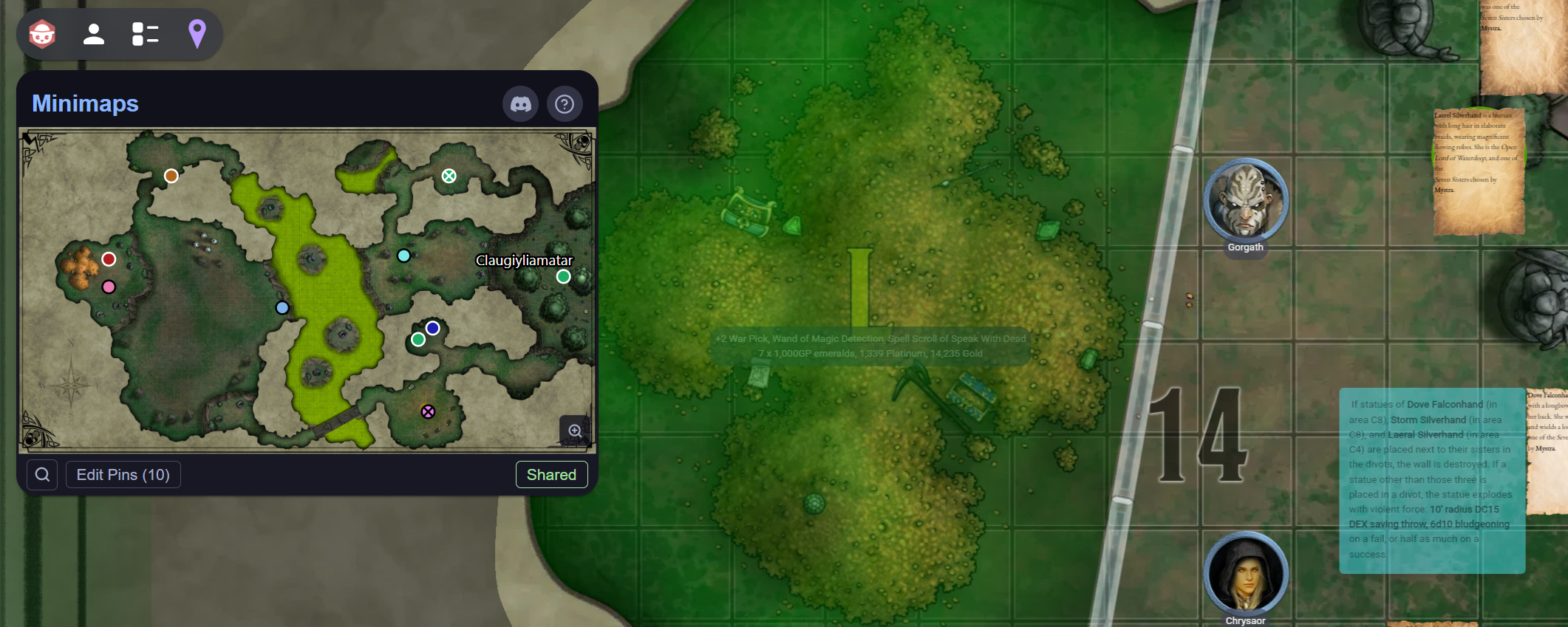
Minimaps is an Owlbear Rodeo extension that renders a thumbnail of the current Scene's map image inside an Action popover, with designated tokens shown as coloured pins that update position in real time as tokens move across the Scene.
Why Minimaps?
Large battle maps are great for immersion, but it's easy to lose track of where you are on a sprawling dungeon floor or an open wilderness hex. Minimaps gives every player a persistent overview, like the minimap in an RPG video game, without interrupting the zoom level or view that's already working for the table.
Getting Started
1. Install the Extension
Copy the Minimaps manifest URL:
https://minimaps.several-record.com/manifest.json
Then head to your Owlbear Rodeo Room → Extras → Extensions → + (Add Custom Extension), paste the URL, and confirm.
2. Enable **Minimaps** in Your Room
While still within the Extensions Manager popover, make sure Minimaps is toggled on for this Room.
You should see the Minimaps icon appear in the top-left extension Action tray.
3. Open the Minimap
Click the Minimaps icon to open the minimap popover. The current Scene's map image is displayed as a scaled thumbnail, sized to match the map's aspect ratio:
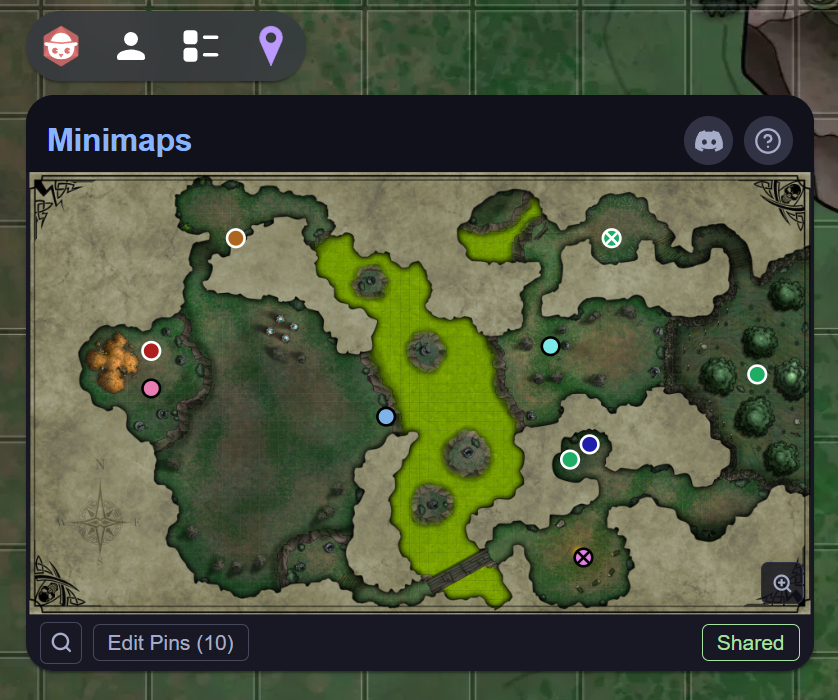
If no tokens have been designated as pins yet, see the next section.
Designating Pins
A pin is any token you want to track on the minimap. Tokens on the Character, Prop, Mount, and Attachment layers can all be pinned, so the minimap can follow party members, a getaway ship, a roaming NPC, or a dropped objective.
There are three ways to add pins, all GM-controlled.
Automatic (player characters)
When you open a Scene, Minimaps auto-pins player-owned Character tokens so the party shows up without any setup. This is deliberately narrow:
- Only the Character layer is auto-pinned. Props, mounts, and attachments are always opt-in.
- Only player-owned tokens are auto-pinned. GM-owned NPCs are opt-in, so a battle scene full of monsters doesn't pin every one.
- A player who joins mid-session has their token auto-pinned when it appears.
Removing an auto-pinned token (see below) is a permanent opt-out: it will not re-add itself.
Right-click a token
Right-click any eligible token in the Scene and choose Add to Minimap. To remove it, right-click again and choose Remove from Minimap.
- Multi-select works: select several tokens on the same layer, right-click, and they are all added or removed in one action.
- Mixed-layer selections (eg. one Character and one Prop at once) will not show the menu item. Use the Edit Pins picker for cross-layer changes.
The Edit Pins picker
For adding or removing many pins at once, or across different layers, use the Edit Pins button. See Editing Pins below.
Reading the Minimap
- The map thumbnail always shows the full extent of the active map image.
- The minimap updates live as tokens move: no need to refresh or reopen the popover.
Pin colour. Each pin is coloured to match its owner's Owlbear Rodeo player colour, so you can tell party members apart at a glance. Tokens with no player colour fall back to a fixed palette of distinct hues.
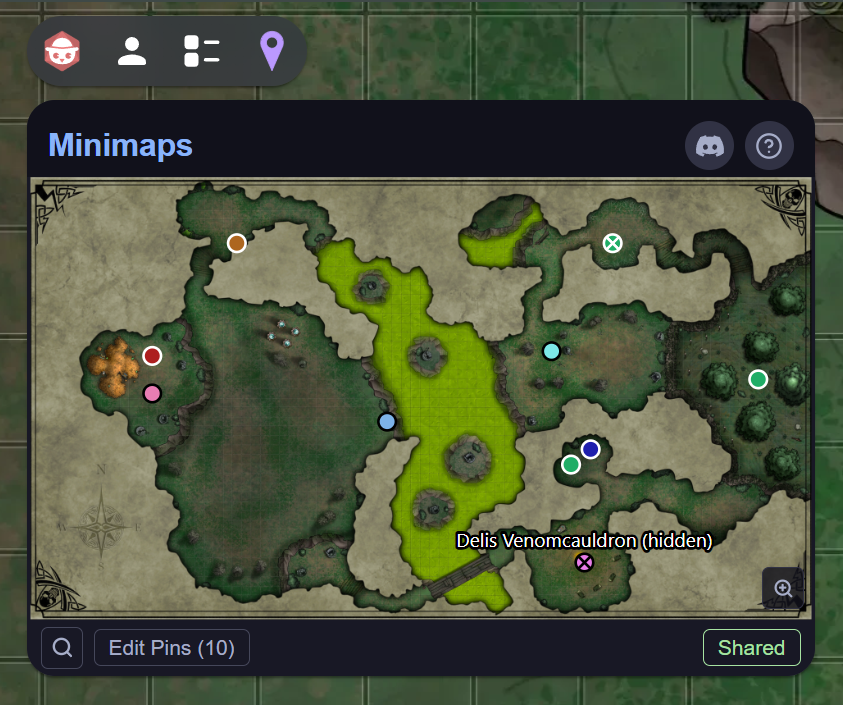
Hidden tokens. A pin for a hidden token is drawn with an X through it and its name suffixed with (hidden). Hidden-token pins are visible to the GM only, matching Owlbear Rodeo's own visibility rules:
Off-map tokens. When a token sits beyond the edge of the current map, its pin becomes a small arrowhead on the map border, pointing toward where the token actually is, rather than disappearing, as you can see in this example:
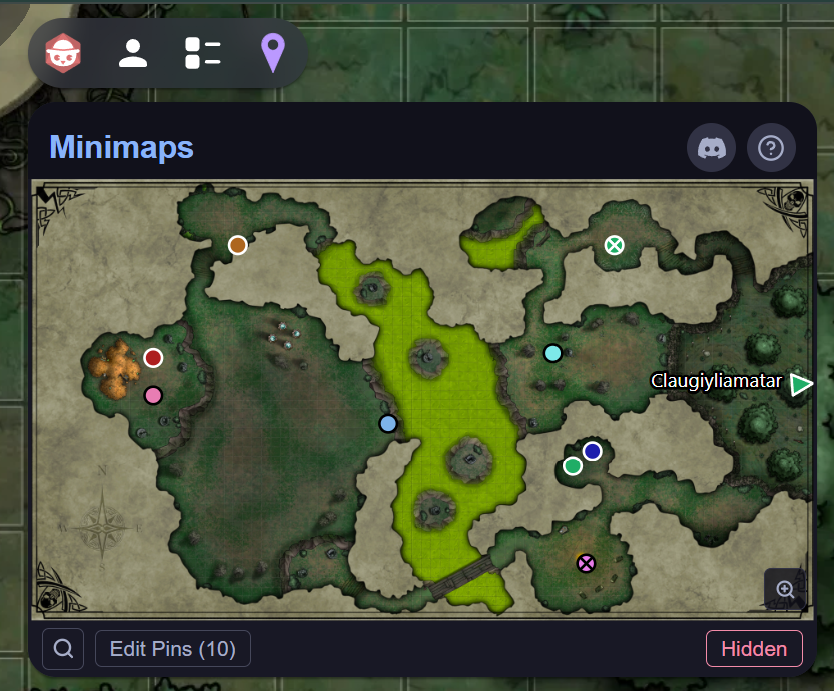
Crowded pins. When two or more pins would overlap, they fan out into teardrop shapes, each with a thin tail pointing back to its true position, so nearby tokens stay readable.
Pin names. Hover a pin to briefly show its name. Click a pin to keep its name latched on screen (and mark it as the target for the zoom tool, see below). Double-click a pin to snap the main Owlbear Rodeo viewport to that token.
Navigating Maps
A Scene can hold more than one map-layer image. Minimaps lets the GM choose which one the minimap displays.
The carousel. When a Scene has more than one eligible map, a slim strip appears with ‹ and › buttons and the current map's name between them. Use the arrows to cycle between maps. The carousel is GM-only; players always see whichever map the GM has selected (see Sharing with Players).
Show in Minimaps. Right-click any map image in the Scene and choose Show in Minimaps to jump the minimap straight to that map, without cycling through the carousel.
Excluding a non-map image. Some map-layer images aren't really maps: a backdrop, a decorative border, or a prop that needs to be below the Scene's gridlines. Click Exclude on the carousel strip to eject the current image from the minimap carousel. It stays in your Scene, it just stops appearing in Minimaps. To bring it back, right-click it in the Scene and choose Add to Minimap.
Zoom & Search
Zoom tool. The magnifier button in the bottom-right of the thumbnail zooms the minimap in (4×) for a closer look, and back out again.
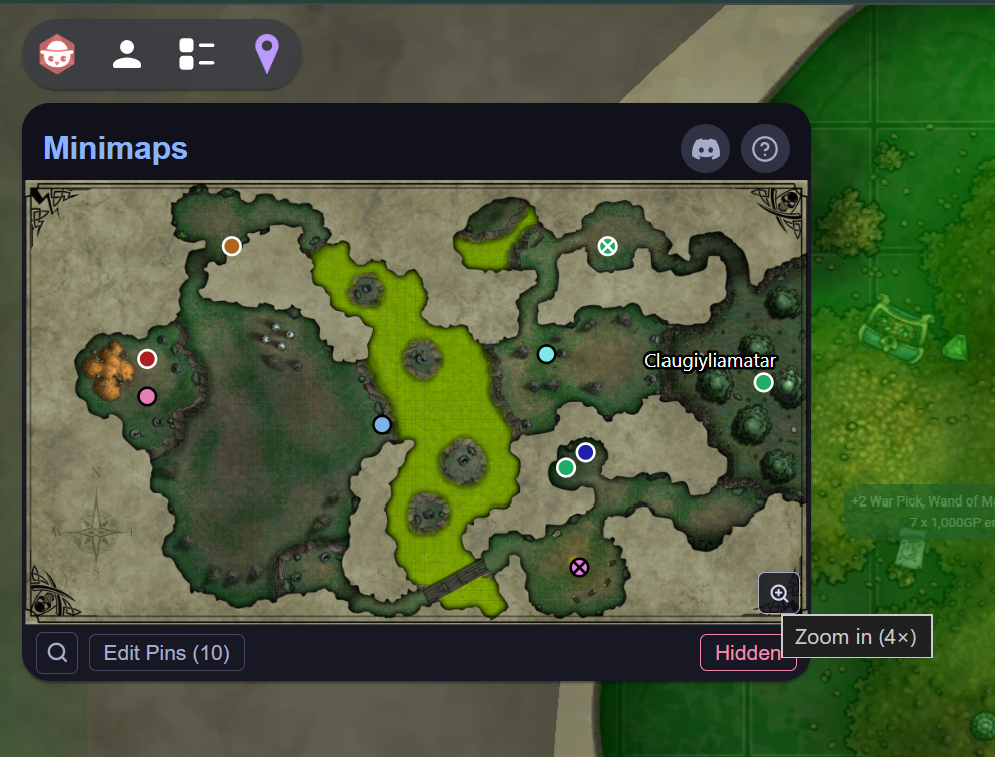
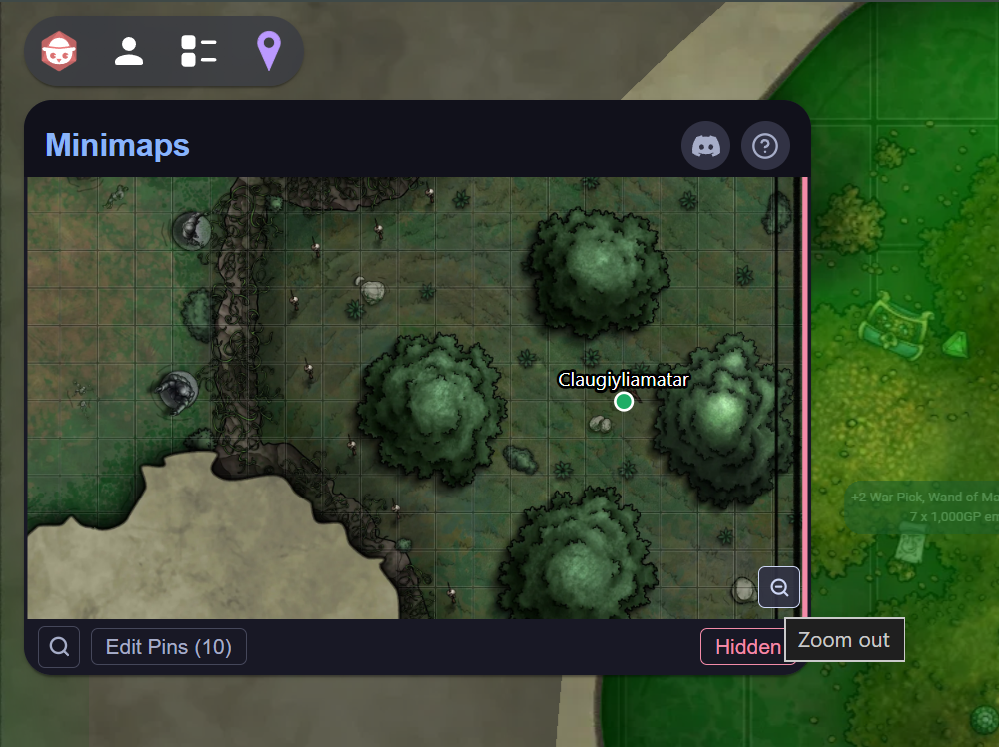
While zoomed in, drag the minimap to pan around it. If you clicked a pin just before zooming, the zoom centres on that pin. If you drag to the edge of the map, a red border highlight appears at that edge, as see on the right-hand side of the zoomed-in example here:
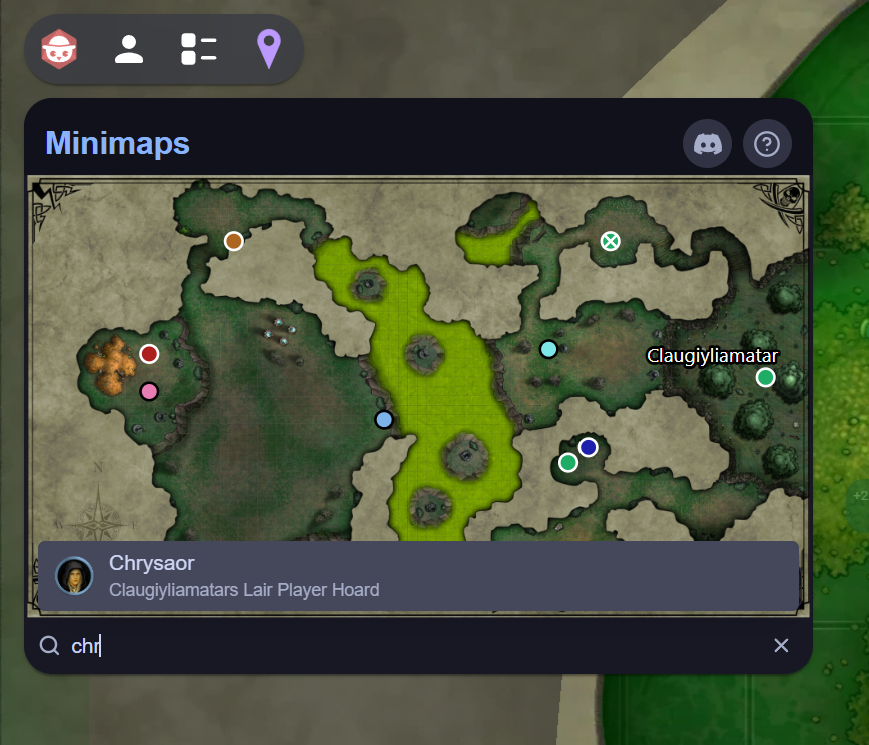
Pin search (GM only). Click the magnifying-glass button in the toolbar to search your pins by name. Search covers pins across all of the Scene's maps, and each result shows the token's avatar and which map it's on. Selecting a result switches the minimap to that pin's map and animates the main viewport to the token. Use the arrow keys and Enter, or click a result, to select.
Sharing with Players
By default the minimap is shared with everyone at the table. The GM toolbar has a Shared / Hidden toggle:
- Shared: players see the minimap, including whichever map the GM has selected.
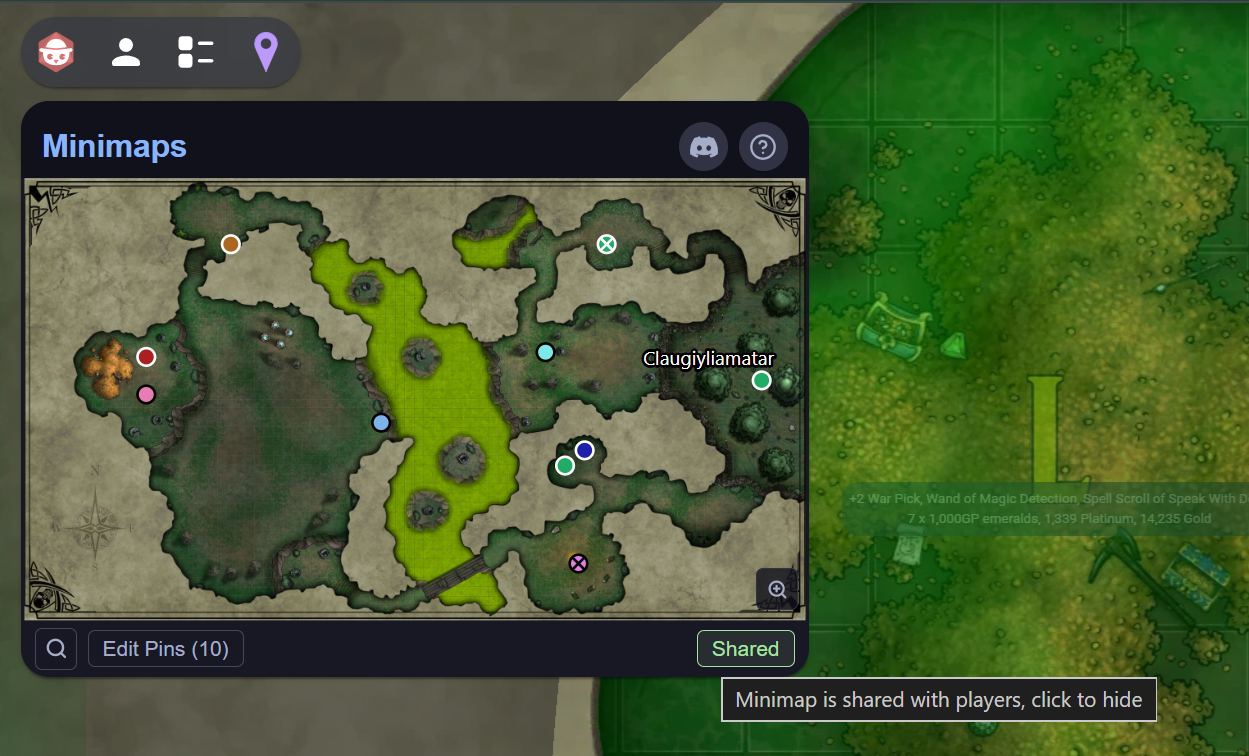
- Hidden: players see a "Minimap hidden by GM" message instead. Useful when you're prepping a map or don't want the party to see what's coming:
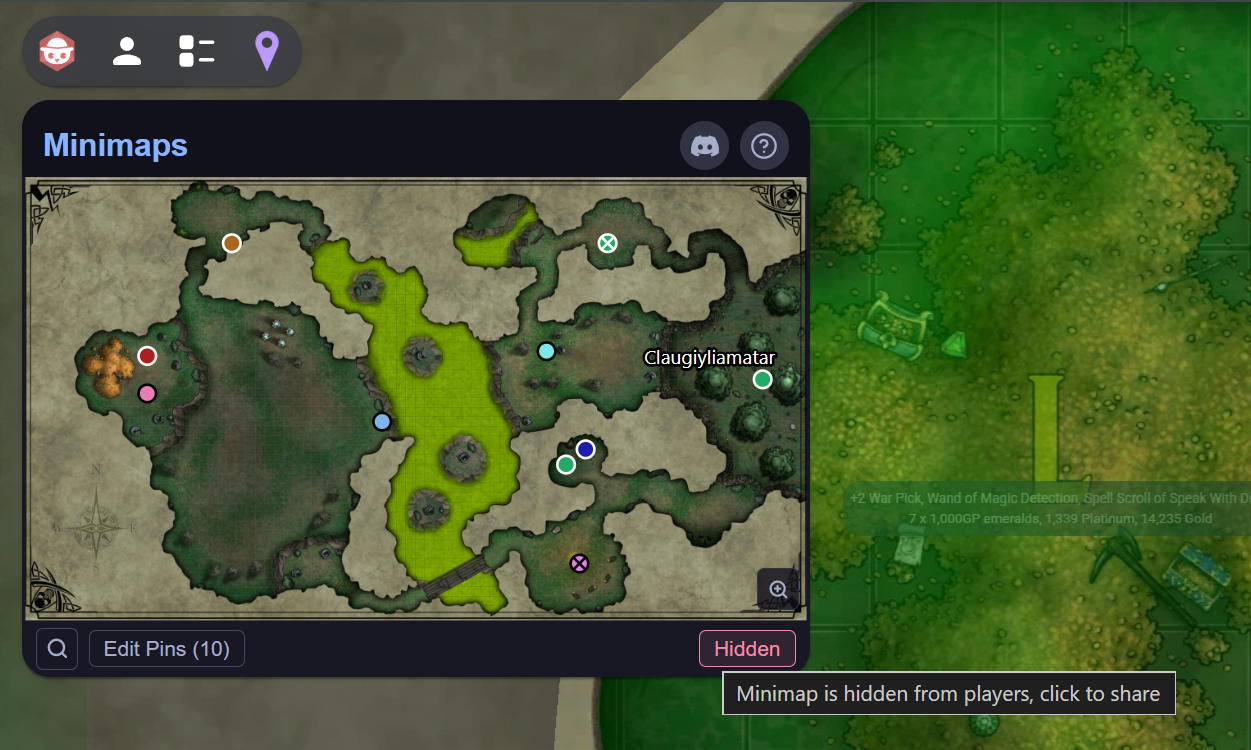
Players never see hidden-token pins or the GM's carousel controls. They follow the GM's active map selection automatically.
Editing Pins
The Edit Pins button (GM toolbar) opens a picker for managing pins in bulk, including across different layers, which the right-click menu can't do for mixed selections.
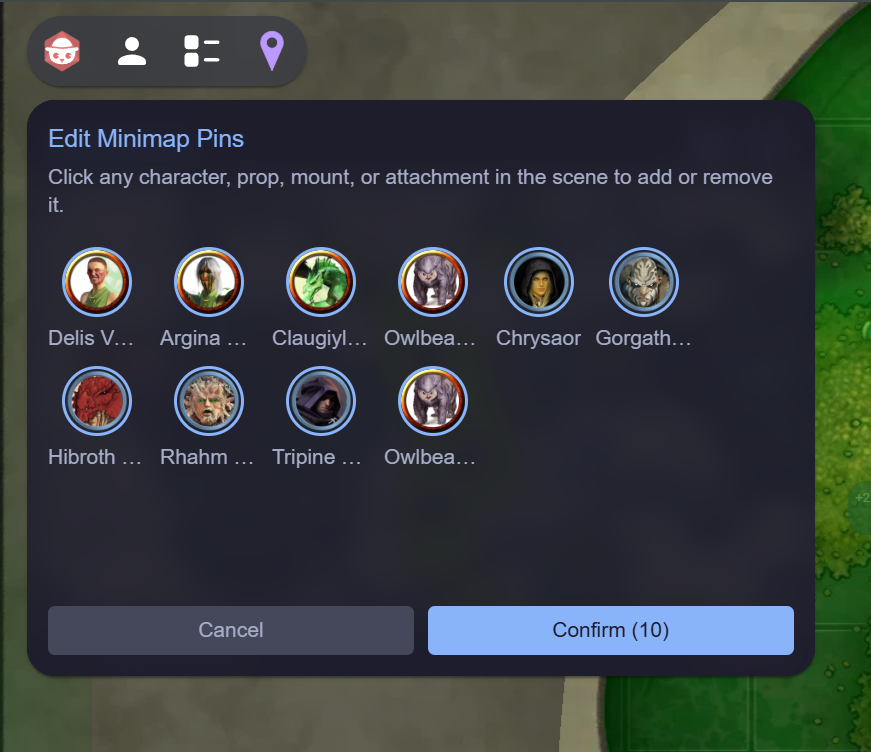
- With the picker open, click any Character, Prop, Mount, or Attachment token in the Scene to add or remove it. The token flashes into (or out of) the pool.
- Click a token's avatar in the pool to remove it directly.
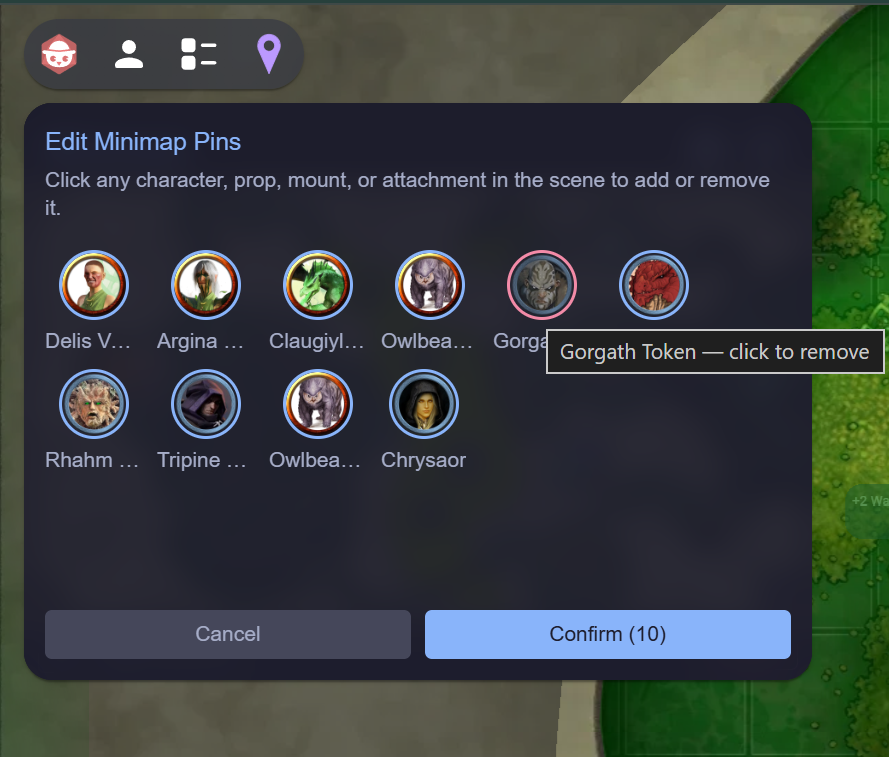
- Confirm applies your changes; Cancel discards them.
Troubleshooting
"The map thumbnail is blank"
- Make sure the Scene has a map-layer image. Scenes with only tokens and no map image will not render a thumbnail.
"My token isn't showing on the minimap"
- Character, Prop, Mount, and Attachment tokens can be pinned. Other layers cannot.
- Player-owned Character tokens are auto-pinned; everything else must be added explicitly via right-click or Edit Pins.
- If you previously removed the token, that was recorded as an opt-out. Add it back via right-click Add to Minimap or the Edit Pins picker.
"The right-click menu item is missing"
- A selection that mixes layers (eg. a Character and a Prop together) won't show the menu. Use the Edit Pins picker for cross-layer changes.
"Players can't see the minimap"
- Check the Shared / Hidden toggle in the GM toolbar. If it reads Hidden, players see a placeholder message instead of the map.
Support
Discord is the main OBR community hub and the place to find help and answers. You can join it through this invite link: https://discord.gg/u5RYMkV98s and then search for "Minimaps" to find the conversation about this extension, or just open a new bug report in the ❓ | #extension-help channel.
Privacy & Licensing
Minimaps is designed with privacy in mind:
- No data collection. Minimaps stores pin designations and map selection in Owlbear Rodeo Scene and item metadata only. No external servers are involved.
- No usage metrics. This extension collects no usage data of any kind.
- Local processing. All minimap rendering happens in your browser. No image data leaves your session.
Icon Credits
| Icon | Description | Author | Licence |
|---|---|---|---|
| Minimaps icon | Map frame with location pin, original SVG | Andrew C | MIT |
All other icons are original inline SVG components.